How to Add a Contact on Muzisecur: Complete Tutorial

Adding a contact on Muzisecur takes less than two minutes. You generate a link, send it to your contact, they fill in their information — and everything automatically appears in your workspace. This tutorial walks you through both available methods, step by step.
If you just created your label and are wondering how to structure your entire operation, start with our guide on independent label administration.
Why centralize your contacts on Muzisecur
When you manage a label or an independent artist career, every collaborator holds essential information: email, address, date of birth, nationality. This data is required to generate contracts, launch distributions, and create memo deals on Muzisecur.
Without a centralized directory, this information ends up scattered across WhatsApp, Google Sheets, and notebooks. Muzisecur’s Contacts module solves this problem: all your professional contacts — artists, producers, distributors, managers, contractors — are gathered in one place with reliable, actionable data.
In short: the Contacts module is the foundation of your management on Muzisecur. Contracts, distributions, memo deals — everything relies on complete and up-to-date contact profiles.
Accessing the Contacts page
- Log in to your workspace on app.muzisecur.fr.
- In the left sidebar, under the General section, click on “Contacts”.
- You’ll land on your contact list: a table showing the name, email, type (Individual or Company), and creation date of each contact.
This is where you can add, search, and manage all your contacts.
Method 1: add a contact via the creation link (recommended)
This is the most reliable and fastest method. Your contact fills in their own information — you avoid data entry errors and save time.
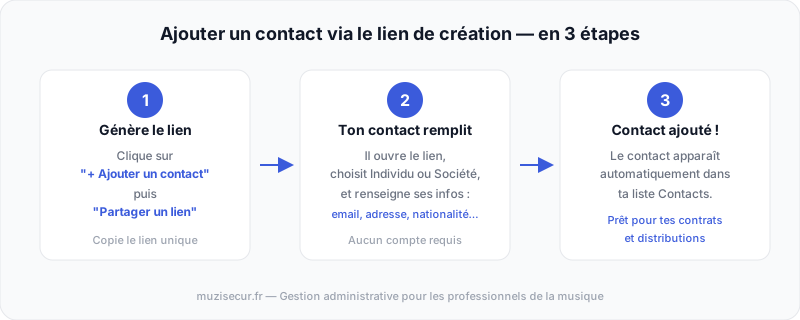 The complete process for adding a contact via the creation link.
Step 1 — Generate the link
- On the Contacts page, click the ”+ Add a contact” button in the top right.
- A window opens with two options. Choose “Share a creation link”.
- Muzisecur generates a unique link. Click “Copy” to copy it to your clipboard.
Important: each link is single-use. To add multiple contacts, generate a new link for each one by clicking “Regenerate”.
Step 2 — Send the link to your contact
Send the link through the channel of your choice: email, WhatsApp, SMS, Instagram, Telegram… Your contact does not need a Muzisecur account to fill in the form.
Step 3 — Your contact fills in their information
When your contact opens the link, they land on a Muzisecur page inviting them to enter their information. They click “Get started”, then choose their profile type:
- Individual — natural person (artist, author, composer, performer, manager, contractor)
- Company — legal entity (label, publishing house, production company, booking agency)
They then fill in the form (detailed in the next section) and click “Add”.
The contact appears immediately in your list on Muzisecur. No further action is required on your part.
Method 2: create a contact manually
If you already have all your contact’s information on hand, you can enter it yourself:
- On the Contacts page, click ”+ Add a contact”.
- Choose “Create manually”.
- Select the profile type: Individual or Company.
- Fill in the form fields (the same as those in the creation link).
- Click “Add”.
When to use the manual method: when you already have all the data (existing paper contract, info sheet received by email) and want to centralize it without reaching out to your contact.
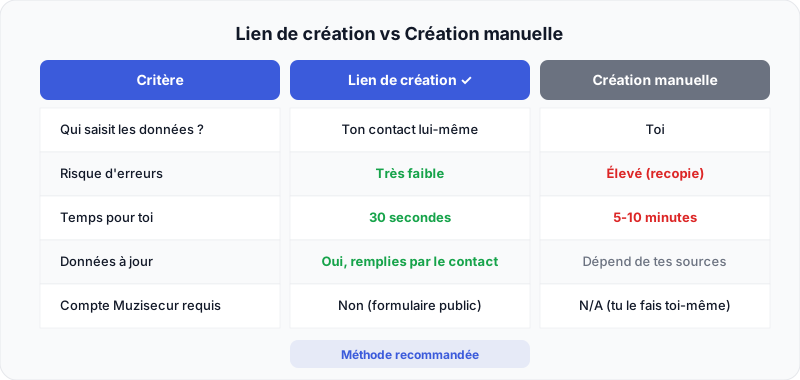 The creation link is faster, more reliable, and avoids data entry errors.
What your contact fills in the form
The contact creation form collects the information needed to generate administrative and legal documents — artist contracts, license deals and memo deals.
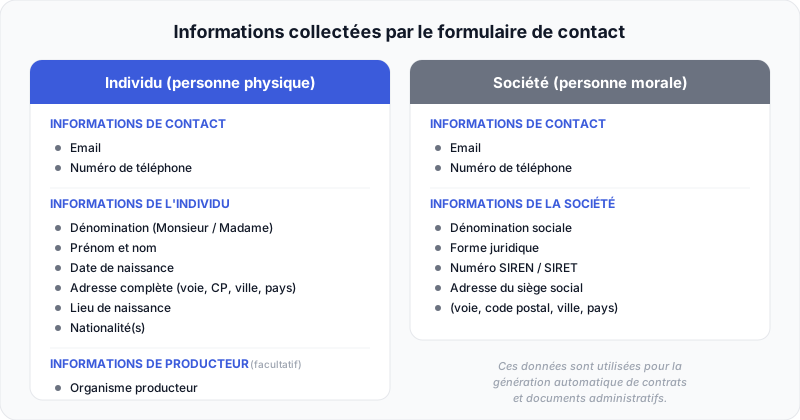 The information collected varies depending on the contact type: individual or company.
For an individual (natural person)
| Section | Fields |
|---|---|
| Contact information | Email, phone number |
| Individual information | Title (Mr. / Ms.), first name, last name, date of birth, full address (street number and name, postal code, city, country), place of birth, nationality(ies) |
| Producer information (optional) | Producer organization |
For a company (legal entity)
| Section | Fields |
|---|---|
| Contact information | Email, phone number |
| Company information | Company name, legal form, SIREN/SIRET number, registered office address (street number and name, postal code, city, country) |
Why this information? It is essential for generating contracts compliant with French law, memo deals, and distribution sheets. By having your contact fill it in directly, you ensure its accuracy. To understand why this data is crucial in your music contracts, check out our dedicated guide.
Review and edit a contact
View a contact profile
After adding, the contact appears in your list. Click on their name to open their detailed profile and verify that all information is complete.
Edit a contact
From the contact profile, you can directly edit all information: email, phone, address, nationality, etc. Changes are saved immediately.
Search for a contact
Use the search bar at the top of the Contacts page to find a contact by name or email. You can also filter by type (Individual or Company).
Best practices for managing your contacts
Always prefer the creation link. Your contact fills in their own data — it’s more reliable, faster, and more professional.
Add your contacts as soon as you have a serious exchange. Don’t wait until a contract is signed. The sooner you centralize the information, the faster you can act when you need to generate a contract or launch a digital distribution.
Distinguish between individuals and companies. A solo artist is an “Individual.” A partner label or production company is a “Company.” This distinction impacts the automatic generation of compliant documents — it’s a key point in your label’s administrative management.
Check each profile after it’s filled in. Take 30 seconds to verify that the address and date of birth are complete — these fields are essential for contracts.
FAQ — Adding a contact on Muzisecur
Does my contact need a Muzisecur account to fill in the form?
No. The creation link opens a form accessible without registration. Your contact fills in their information directly from their browser, and it is automatically added to your Muzisecur workspace.
Can I use the same link for multiple contacts?
No. Each creation link is single-use. To invite multiple contacts, generate a new link for each one from the Contacts page by clicking ”+ Add a contact” then “Share a creation link”. You can also click “Regenerate” to get a new link immediately.
What is the difference between Individual and Company?
- Individual = natural person: artist, author, composer, performer, manager, contractor.
- Company = legal entity: label, publishing house, production company, booking agency.
This choice determines the form fields and the format of generated documents (contracts, memo deals).
Can I edit a contact’s information after adding them?
Yes. Click on the contact’s name in your list to open their profile, then edit the necessary fields. This is useful if your contact changes their address, phone number, or email.
What are the date of birth and nationality used for?
This information is required for generating contracts compliant with French law. It appears in artist contracts, license deals, and memo deals. By centralizing it in Muzisecur, you no longer need to ask for it again with each new document.
My contact didn’t receive the link, what should I do?
Make sure you copied the link (the “Copy” button) and sent it to the right recipient. If the link no longer works, it may have already been used — generate a new link by clicking “Regenerate” from the contact addition page.
How many contacts can I add on Muzisecur?
There is no limit to the number of contacts you can add on Muzisecur. Add as many artists, collaborators, and partners as you need.
Conclusion
Adding a contact on Muzisecur is simple: generate a link, send it, and your contact fills in their info themselves. In less than two minutes, you get a complete, reliable profile ready to be used for your contracts, distributions, and memo deals.
Ready to centralize your contacts? Create your free Muzisecur account and start structuring your music business now.
Related articles

How to Manage Your Muzisecur Account: Profile, Mandates, and Subscription
Learn how to edit your personal information, add an artist profile, sign your mandates, and manage your subscription on Muzisecur.

How to Create a Music Label in France: The Complete Guide (2026)
Legal structure, SCPP/SPPF, distribution, contracts, budget: every step to launch your independent label in France.

Who Owns What in Music in 2026? Majors, Investment Funds, and Acquisitions
UMG acquires CD Baby, Sony buys Queen, Blackstone swallows Hipgnosis: the complete map of who owns what in the music industry.