How to Add and Manage an Audio Track on Muzisecur: Complete Tutorial

Adding an audio track on Muzisecur is much more than importing a file. It means documenting your work from A to Z: title, genre, participants, rights, contracts, and registrations. This tutorial walks you through every step so your work is properly recorded, protected, and ready for distribution.
If you haven’t added your contacts to the platform yet, start with our tutorial on adding contacts — you’ll need them to add participants to your audio.
Why document every audio work
Every track you produce involves rights, roles, and contractual obligations. Without precise documentation, you expose yourself to disputes over royalty splits, distribution blockages, and revenue losses with collective management organizations.
On Muzisecur, the audio profile centralizes everything related to a work:
- General information: title, language, production year, music genre, ISRC code
- Audio and lyrics: WAV file and lyrics text
- Participants: performers, authors, composers, publishers, producers, royalty beneficiaries
- Contracts: sale and musical assignment contract, exclusive recording contract, assignment and publishing contract
- Registrations: declarations with SACEM, ADAMI, SPEDIDAM, and SPPF/SCPP
If you want to understand the role of each organization in detail, check our guide on ADAMI and SPEDIDAM and our article on copyright.
Key takeaway: a complete audio profile on Muzisecur guarantees that every participant knows their rights, contracts are signed, and collective management organizations have the information needed to pay you.
 The 5 steps to fully document your audio work.
Create a new audio
- Log in to app.muzisecur.fr and access your dashboard.
- In the left sidebar, under the General section, click on “Audios”.
- You’ll land on your audio list: a table showing the title, associated member, and status of each work.
- Click the ”+ Add an audio” button in the top right.
- A “Create an audio” window opens with two fields:
- Audio title: enter the title of your work (e.g., “Track title”).
- Work type: choose between Definitive (finished work) or Provisional (work in progress).
- Click “Create audio”.
You’ll be redirected to your audio profile with a “Steps to follow” panel listing the sections to complete: General information, Audio and lyrics, Participants, Contracts, and Registrations.
Fill in the general information
Click “Complete” next to General information to open the form.
Fields to fill in
| Field | Description | Example |
|---|---|---|
| Audio title | The title of your work | Track title |
| Title language | The language the title is written in | French |
| Production year | The year the work was recorded | 2027 |
| Music genre | The main genre of the work | Pop |
| ISRC number | International identification code (if you have one) | Yes / No |
Not sure what an ISRC code is or how to get one? Check our complete guide on ISRC codes.
Advanced options
By clicking “Advanced options”, you can access additional fields:
- Is the audio under license? (Yes / No)
- Subtitle
- Territorial restrictions
Once all fields are filled in, click “Save”. A green indicator confirms the step is validated.
Add the audio file and lyrics
Click “Audio and lyrics” in the Steps to follow panel.
Import the audio file
Click “Add an audio file” and select your file from your computer.
Technical requirements:
- Format: WAV only
- Maximum size: 10 GB
- Quality: 16-bit/44.1 kHz or 24-bit/48 kHz
- Channels: 2 channels (stereo)
Add the lyrics
- Click ”+ Add lyrics”.
- A “Lyrics” window opens. Select the lyrics language (e.g., French). You can select multiple languages.
- Indicate whether the lyrics are explicit or vulgar (Yes / No).
- Paste the lyrics text in the “Lyrics” field.
- Click “Save”.
Once the lyrics are added, you can view, copy, or download them as PDF directly from the audio profile.
Add participants
This is the most important step. Every person involved in creating the work must be added with their roles and rights percentages.
In the Steps to follow panel, click “Add a participant →”. Muzisecur displays 4 participant categories to complete:
- Performers — the artists who perform the work
- Creators and publishers — authors, composers, and publishers
- Producers — the phonographic producers
- Royalty beneficiaries — the people who receive revenue from the work’s commercial exploitation
To fully understand the different roles and rights of each, check our complete guide on music rights.
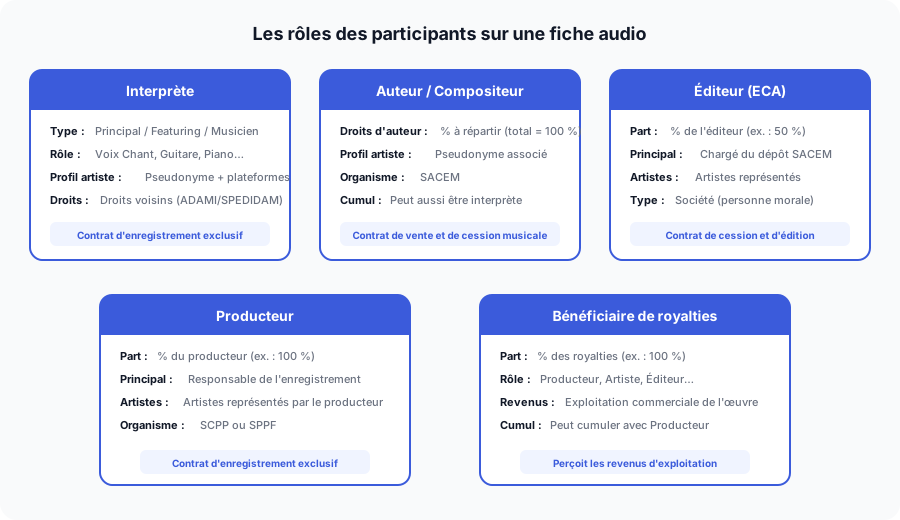 Each role has its own rights, percentages, and associated contracts.
Add a performer
- Click ”+ Add a participant”.
- In the Contact field, select the contact from the dropdown list.
- Click ”+ Add a role”, then select “Performer”.
- If it’s a new artist, an “Add an artist profile” window opens:
- Enter the stage name (artist name).
- Add the platforms where the artist is present (Spotify, Apple Music, Deezer, Amazon Music). If no identifier is provided, Muzisecur will automatically create a new profile on each platform.
- Choose the performer type: Main, Featured, or Musician.
- Select the performer role (e.g., Lead Vocals).
- Select the associated artist profile.
- Click “Add this participant”.
Tip: the same participant can hold multiple roles. For example, an artist can be both lead performer, author, and composer. Add each role by clicking ”+ Add a role” before confirming.
If you’re working with featured artists, check our guide on the featuring contract to properly frame the collaboration.
Add an author and a composer
For each creator of the work, add the Author and/or Composer roles:
- Click ”+ Add a role” in the participant window.
- Select “Author”, then enter the copyright percentage (the sum of all authors must reach 100%).
- Add another role by clicking ”+ Add a role” again and select “Composer” with its percentage.
- For each role, select the corresponding artist profile.
Example split for an artist who is both author and composer:
- Author: 25%
- Composer: 25%
- Total copyright for this participant: 50%
To learn more about splitting rights between co-writers, check our article on split sheets.
Add a publisher
The publisher is the company that manages the publishing rights for the work. To understand the publisher’s role in detail, check our guide on music publishing.
- Click ”+ Add a participant” and select the publishing company from the contact list.
- Click ”+ Add a role”, then select “Publisher”.
- Enter the publisher’s share (e.g., 50%).
- Indicate whether this is the main publisher (Yes / No). The main publisher is responsible for registering the work with the relevant organizations.
- Select the artists represented by the publisher (optional).
- Click “Add this participant”.
Add a producer
- Click ”+ Add a participant” and select the contact.
- Add the roles Performer (if applicable) then Producer.
- Enter the producer’s share (e.g., 100% if they are the sole producer).
- Indicate whether they are the main producer (Yes / No).
- Select the artists represented by the producer (optional).
- Click “Add this participant”.
Add a royalty beneficiary
The royalty beneficiary is the person or entity that receives revenue from the commercial exploitation of the work.
- Click ”+ Add a participant” and select the contact.
- Add the “Royalty beneficiary” role.
- Enter the beneficiary’s share (e.g., 100%).
- Indicate the beneficiary’s role (e.g., Producer).
- Click “Add this participant”.
Once all participants are added, the Participants section of your audio profile displays a complete summary with the names, roles, and percentages of each contributor.
Create and send contracts
Once the participants are filled in, Muzisecur automatically generates the necessary contracts in the Contracts section of the audio profile. Three types of contracts may appear:
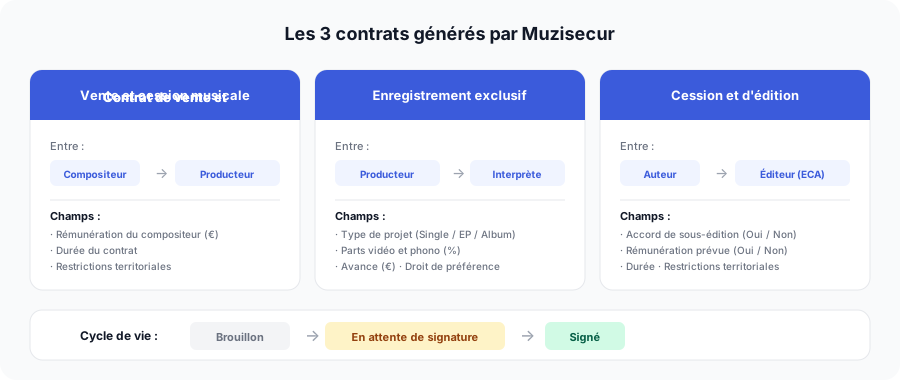 Each contract binds two parties and follows a lifecycle from creation to signature.
Sale and musical assignment contract
This contract formalizes the assignment of rights between the composer and the main producer.
- Click ”+ Create” next to the contract.
- Muzisecur pre-fills the signatories (composer and main producer).
- Enter the composer’s compensation (amount in euros).
- Expand Advanced options to configure the contract duration, territorial restrictions, and creation date.
- Click “Create”.
- Click the ”⋯” menu next to the contract, then “Preview” to review the contract.
- Click “Send to signatories”, then confirm with “Send”.
The contract changes to “Awaiting signature” status. Each signatory receives an email with a link to view and sign the document.
Exclusive recording contract
This contract formalizes the relationship between the producer and the performing artist (featured or main). To understand the differences between an artist contract and a license deal, check our detailed comparison.
- Click ”+ Create” next to the contract.
- Enter the project type (Single, EP, Album).
- Enter the shares paid to the performer: video share and phono share (e.g., 20% each).
- Enter the advance paid to the artist (amount in euros).
- Indicate whether you want to include a right of first refusal (Yes / No).
- Configure the assigned options (Singles, Albums, EP).
- Expand Advanced options for duration and territorial restrictions.
- Click “Create”.
- Send the contract to the signatories as described above.
Assignment and publishing contract
This contract formalizes the relationship between the author and the publisher.
- Click ”+ Create” next to the contract.
- Muzisecur pre-fills the signatories (author and publisher).
- Indicate whether a sub-publishing agreement has been concluded (Yes / No).
- Indicate whether the contract includes compensation (Yes / No).
- Expand Advanced options if needed.
- Click “Create”.
- From the contract page, click “Send for signature”, then confirm.
Key takeaway: you can download each contract as a PDF before sending it for review. Click the ”⋯” menu then “Download”, or the “Download” button from the contract page.
Manage registrations
At the bottom of the audio profile, the Registrations section displays the declarations to make with collective management organizations. Muzisecur flags missing registrations:
- SACEM — Society of Authors, Composers, and Music Publishers
- ADAMI — Administration of Performing Artists’ and Musicians’ Rights
- SPEDIDAM — Society for the Collection and Distribution of Performing Artists’ Rights
- SPPF or SCPP — Civil Society of Phonographic Producers
Click ”+ New registration” to declare a registration made with an organization.
If you’re a producer, check our guide on the SCPP/SPPF annual sales declaration to make sure you don’t miss anything.
Good to know: these registrations are essential for collecting your neighboring rights and copyright royalties. Muzisecur reminds you of missing registrations until they are completed.
FAQ — Adding an audio on Muzisecur
What audio formats are accepted on Muzisecur?
Muzisecur only accepts WAV format. The file must be under 10 GB, in 16-bit/44.1 kHz or 24-bit/48 kHz, and in 2 channels (stereo).
What is the difference between a definitive and a provisional work?
A definitive work is a finished recording, ready for distribution and contract signing. A provisional work is a work in progress that you can complete later.
Can I assign multiple roles to the same participant?
Yes. The same contact can hold multiple roles: performer, author, composer, producer, and royalty beneficiary. Click + Add a role for each additional role.
How do I split copyright between multiple participants?
When adding each participant with an Author or Composer role, enter the percentage in the Copyright percentage field. The total of all participants must reach 100%.
What happens when I send a contract to signatories?
Each signatory receives an email with a link to the contract. They can view it, download it, and sign it electronically. The status changes from Draft to Awaiting signature, then to Signed once all signatures are collected.
Are the 4 missing registrations displayed mandatory?
Muzisecur flags missing registrations with collective management organizations: SACEM, ADAMI, SPEDIDAM, and SPPF (or SCPP). These registrations are recommended to protect your rights and collect your royalties.
Can I modify an audio after sending the contracts?
You can modify general information and participants, but contracts already sent can no longer be modified. You will need to create a new contract if conditions change.
Conclusion
Adding an audio track on Muzisecur means structuring all the legal and administrative documentation for your work in one place. From creating the profile to sending contracts for signature, every step brings your track closer to a smooth and compliant exploitation.
To go further in managing your label:
Related articles

Independent Label: How to Structure the Admin Management of Your Artists
Contracts, distribution, rights, accounting, promotion: the 5 admin pillars of an independent label and how to structure them without drowning.

How to Add a Contact on Muzisecur: Complete Tutorial
Learn how to add a contact on Muzisecur in 3 steps using the creation link. The recommended method for labels and independent artists.

How to Manage Your Muzisecur Account: Profile, Mandates, and Subscription
Learn how to edit your personal information, add an artist profile, sign your mandates, and manage your subscription on Muzisecur.